Product tour

See the work. Then decide.

An ungated look at the real HourSquare Hub: current screens, with fictional people and company data. For each one, what it shows, who sees it and what the screenshot does not prove.

  • Real Hub screens, not mock-ups
  • Fictional “Northstar Studio” data
  • No sign-up, no form

Phone and tablet. On a smaller screen this page switches to captures of the same Hub page taken at that width, wherever one exists. Use “Enlarge screen” under any image to read it in full.

1 of 8 · Home

Start with what needs you.

Home pulls the day together: what is waiting for your decision, what is missing from people’s records, your own clock-in and a quick read on the company.
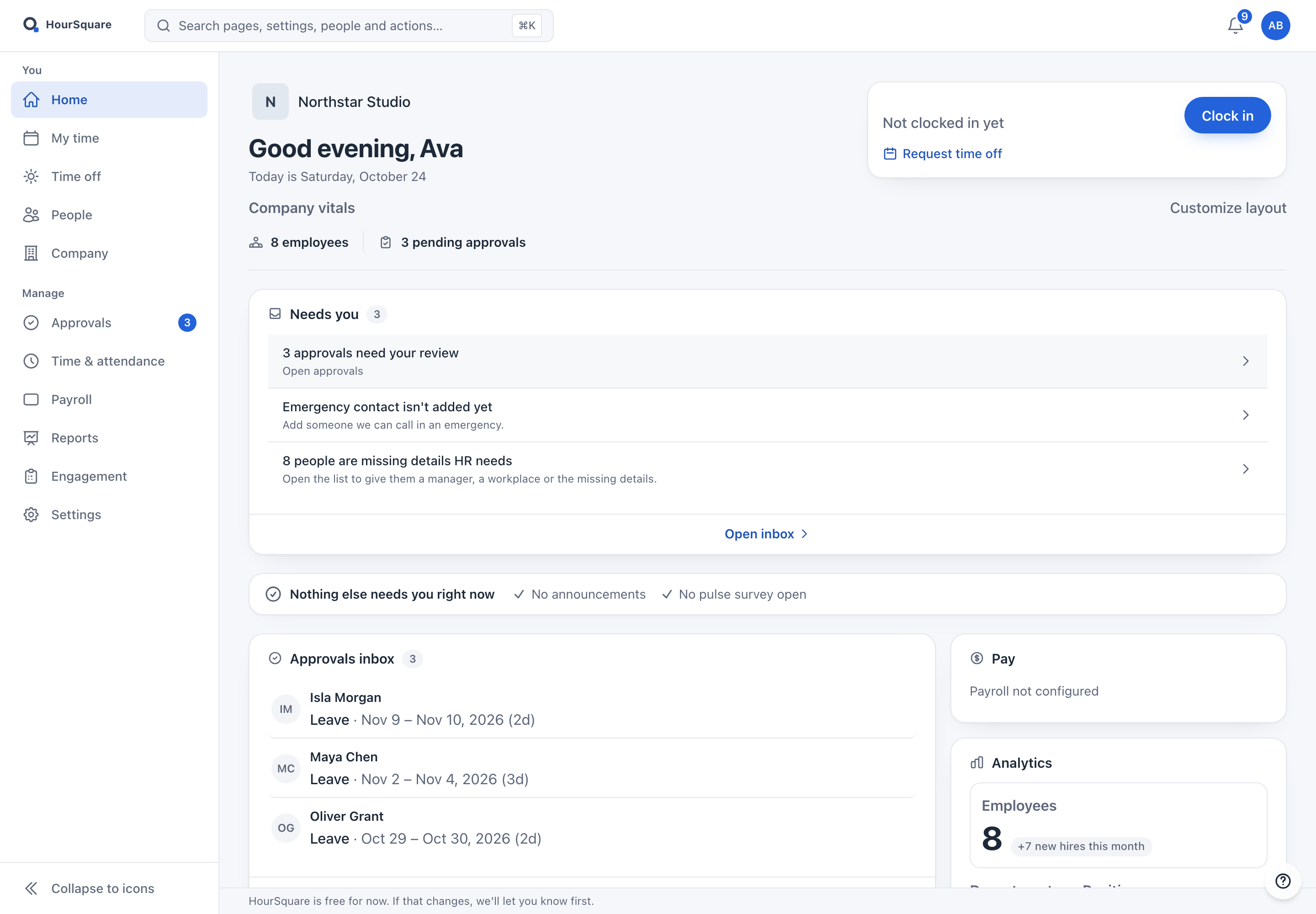
HourSquare Hub home for the owner of Northstar Studio: a Needs you list with three approvals, an emergency-contact reminder and eight people missing details, plus a clock-in card and an approvals inbox.
Real Hub · desktopReal Hub · tabletReal Hub · phoneThe Hub home as an owner sees it.

The Hub home as an owner sees it.

What the screen shows
  • A “Needs you” list with approvals and incomplete records, each opening the place where you act on it.
  • Your own clock-in and a shortcut to request time off.
  • A sidebar that separates your own area (Home, My time, Time off, People, Company) from the Manage area (Approvals, Time & attendance, Payroll, Reports, Engagement, Settings).
Who sees it
Owner view, signed in as the fictional owner. What Home shows, and whether the Manage area appears, depends on the viewer’s role and permissions.
Keep in mind
Captured on a Saturday evening in a new fictional company, so clock-in reads “Not clocked in yet” and the Pay card reads “Payroll not configured”.

2 of 8 · People

One directory for everyone.

See each person’s position, department, manager, workplace and status in one list. Search, filter, switch between list and grid, open the org chart, export, or bulk upload.
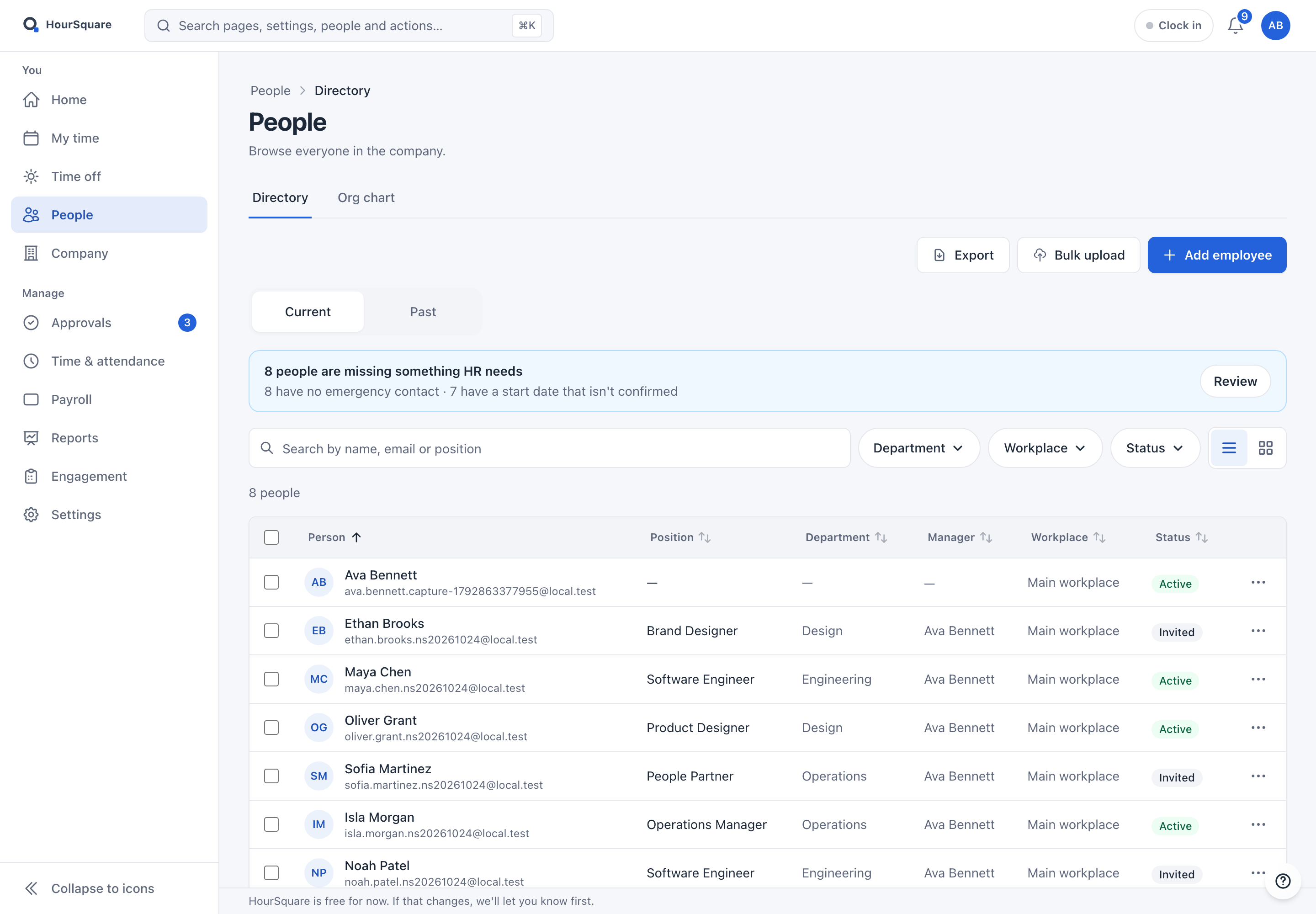
HourSquare Hub People directory listing eight fictional Northstar Studio employees with position, department, manager, workplace and Active or Invited status.
Real Hub · desktopReal Hub · tabletReal Hub · phoneThe People directory with eight fictional people.

The People directory with eight fictional people.

What the screen shows
  • Current and past people, with Active and Invited statuses.
  • A prompt that points out people with missing HR details, with a Review shortcut.
  • Add employee, Bulk upload and Export in the page header.
Who sees it
Owner view. Viewing and changing people records depends on role and permissions.
Keep in mind
Eight fictional people, some still Invited. Adding a record and sending an invitation are separate actions, and bulk upload brings in a people list only.
What the people import does and does not cover

3 of 8 · Time off

See the week as a team.

Time off sits beside your balances and requests. The team calendar shows who is away, by week or month, and which requests are still waiting.
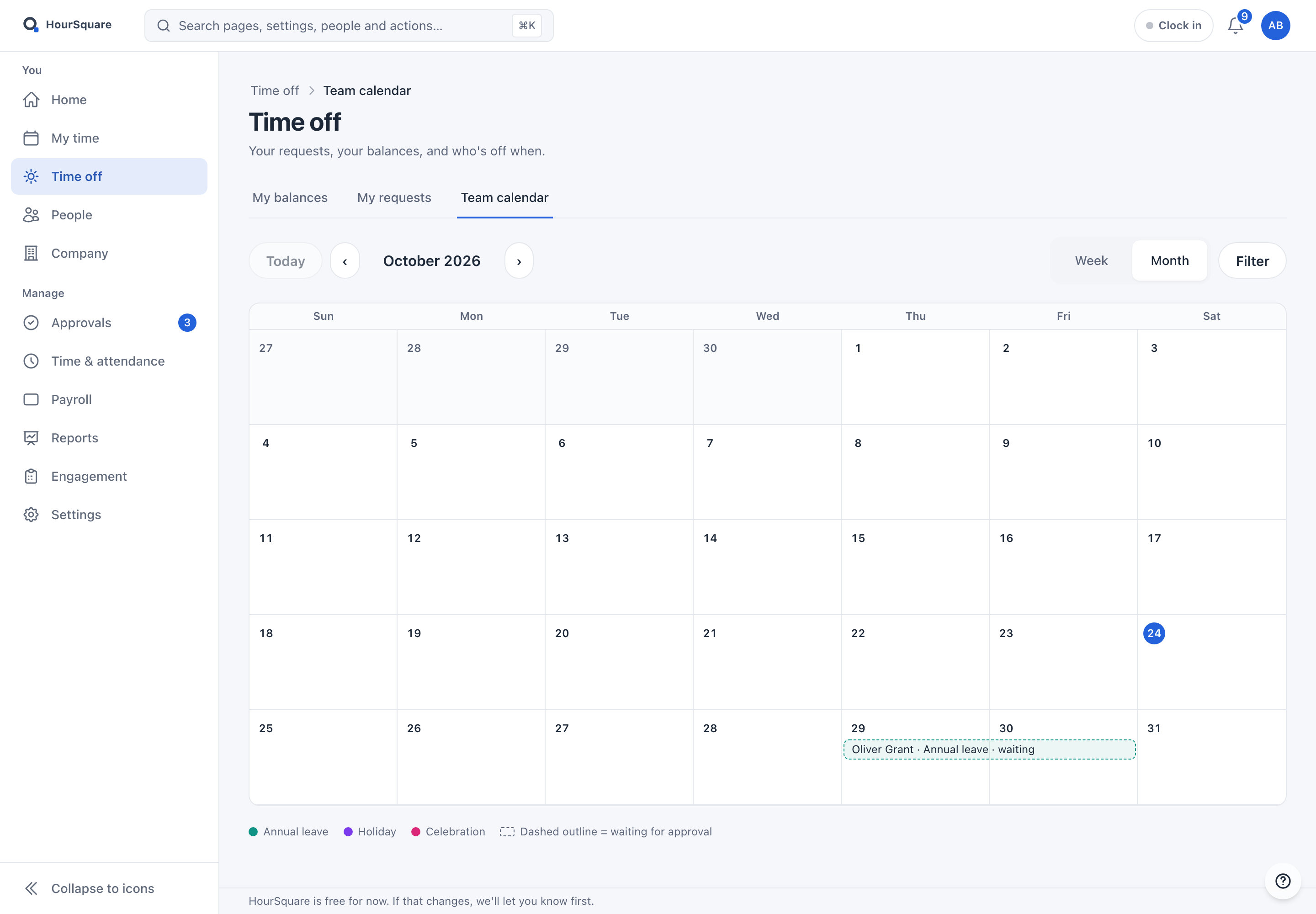
HourSquare Hub Time off team calendar for October 2026 with one pending annual-leave request shown with a dashed outline.
Real Hub · desktopReal Hub · tabletReal Hub · phoneThe Time off team calendar, month view.

The Time off team calendar, month view.

What the screen shows
  • Tabs for My balances, My requests and Team calendar.
  • A legend for annual leave, holidays and celebrations; a dashed outline means “waiting for approval”.
  • Week and month views with a filter.
Who sees it
Owner view of the team calendar. Everyone uses the same area for their own balances and requests; whose absences you see depends on your role.
Keep in mind
A near-empty calendar with one fictional request waiting for approval. Leave types and rules are set up in Settings before people request anything.
Time off in more detail

4 of 8 · Time & attendance

Who is working, and who needs a look.

A daily view of working, on break, done for the day, not in yet and off, with timesheets and overtime a tab away.
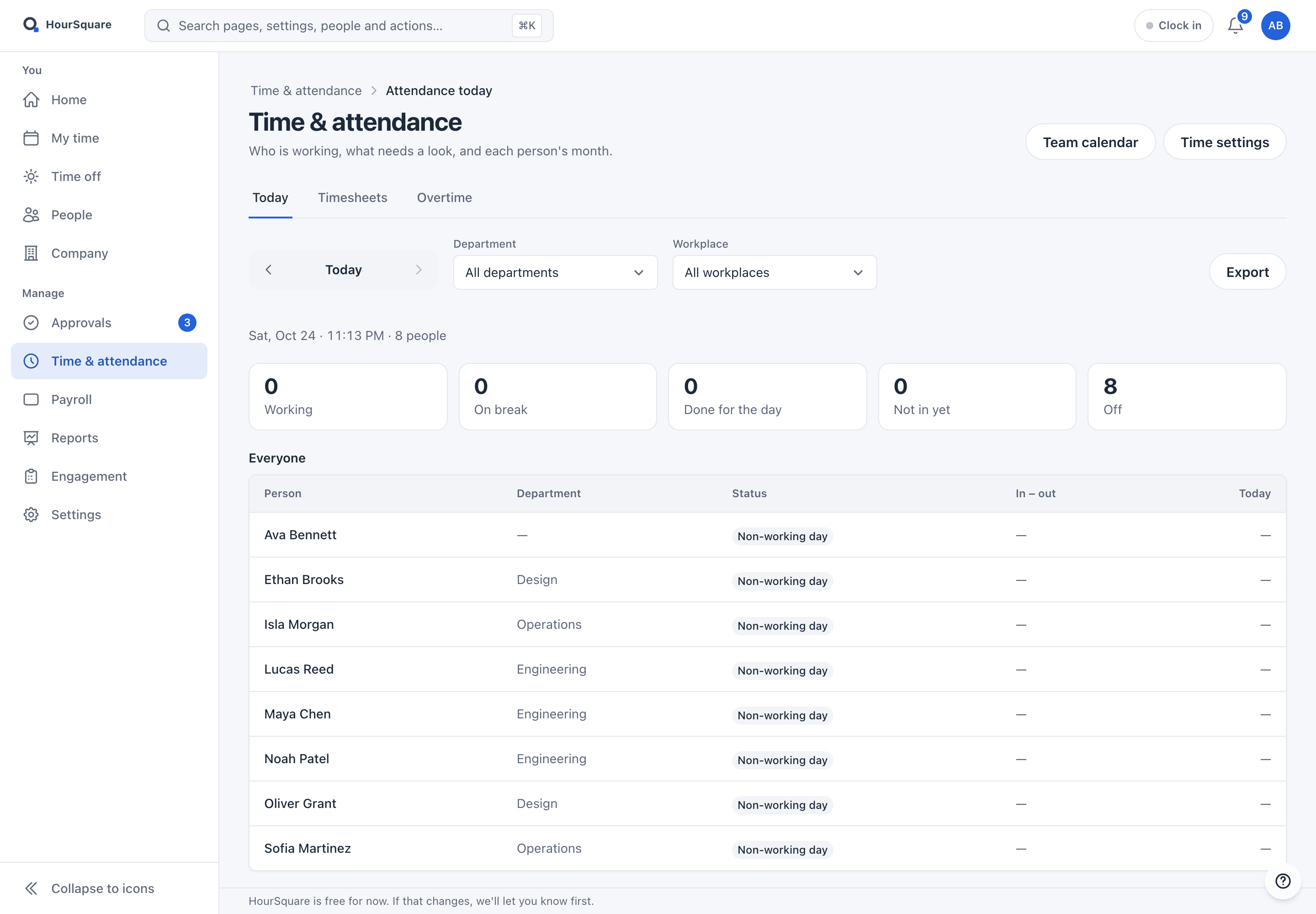
HourSquare Hub Time and attendance page for one day: status counts all at zero with eight people off, and a table of eight fictional employees marked non-working day.
Real Hub · desktopReal Hub · tabletReal Hub · phoneTime & attendance for a single non-working day.

Time & attendance for a single non-working day.

What the screen shows
  • Counts for Working, On break, Done for the day, Not in yet and Off.
  • Filters by department and workplace, and an Export.
  • Tabs for Today, Timesheets and Overtime, plus shortcuts to the team calendar and time settings.
Who sees it
Manage area, owner view. Employees record their own time in My time.
Keep in mind
Captured on a non-working day, so everyone shows “Non-working day” and nobody is clocked in. How time is recorded is configured in Settings.
Time tracking in more detail

5 of 8 · Approvals

Decide in one place.

Requests waiting for you are listed on the left; the selected one opens on the right with the dates, the balance, the note and a place to comment.
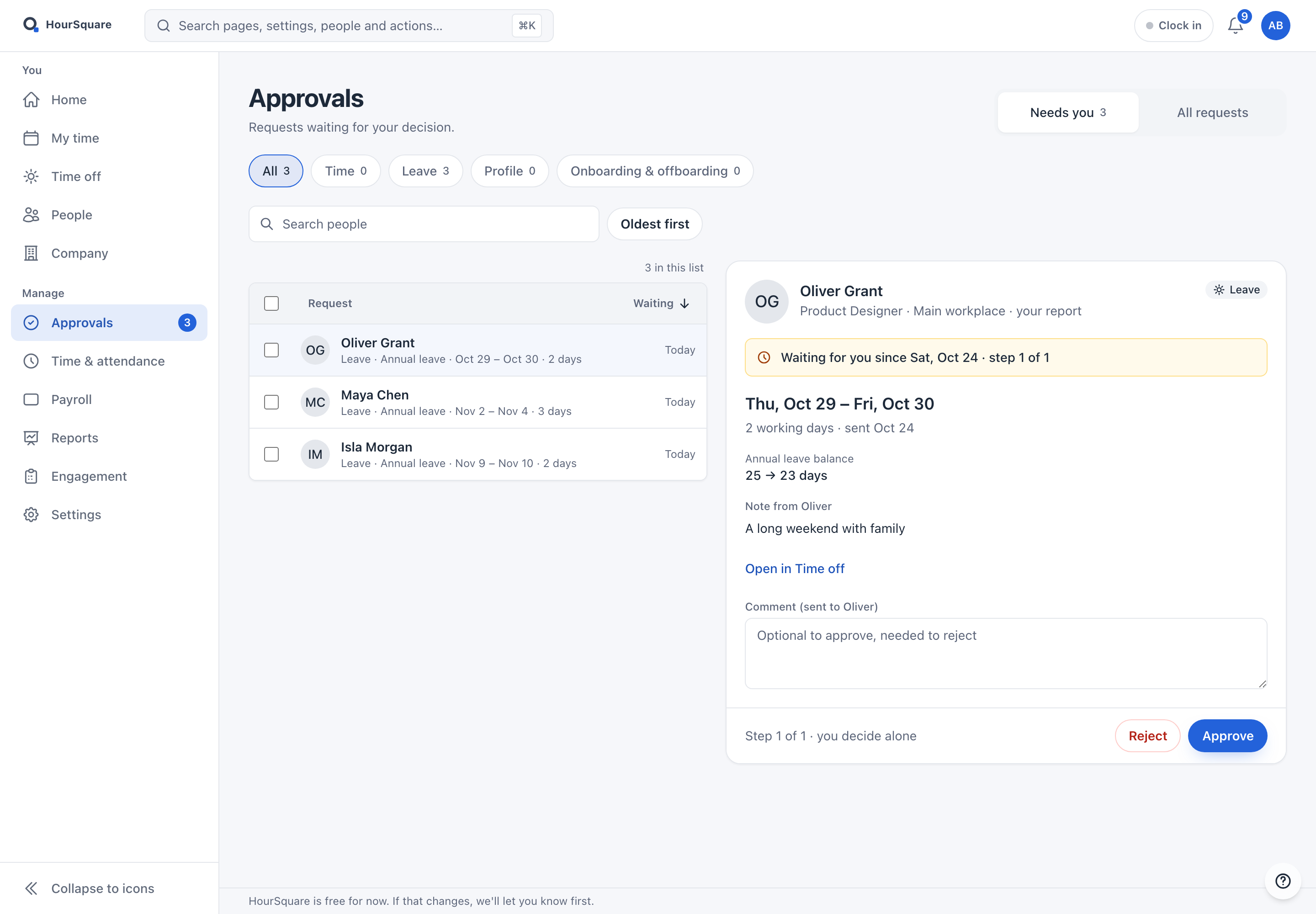
HourSquare Hub Approvals page with three pending leave requests on the left and the selected request, a two-day annual leave request, open on the right with Approve and Reject buttons.
Real Hub · desktopReal Hub · tabletReal Hub · phoneApprovals with three pending fictional leave requests.

Approvals with three pending fictional leave requests.

What the screen shows
  • Filter by All, Time, Leave, Profile, and Onboarding & offboarding.
  • Switch between “Needs you” and “All requests”.
  • Approve or reject with an optional comment (needed to reject).
Who sees it
People responsible for approving requests. Owner view; what appears depends on role, company configuration and request types.
Keep in mind
Three fictional pending leave requests. These are HourSquare’s own requests, not approvals that live in another system.

6 of 8 · Payroll

Payroll starts with setup.

A new company sees where payroll begins: a quick setup, the people who still need a contract and a bank account, and the settings, pay details and reports.
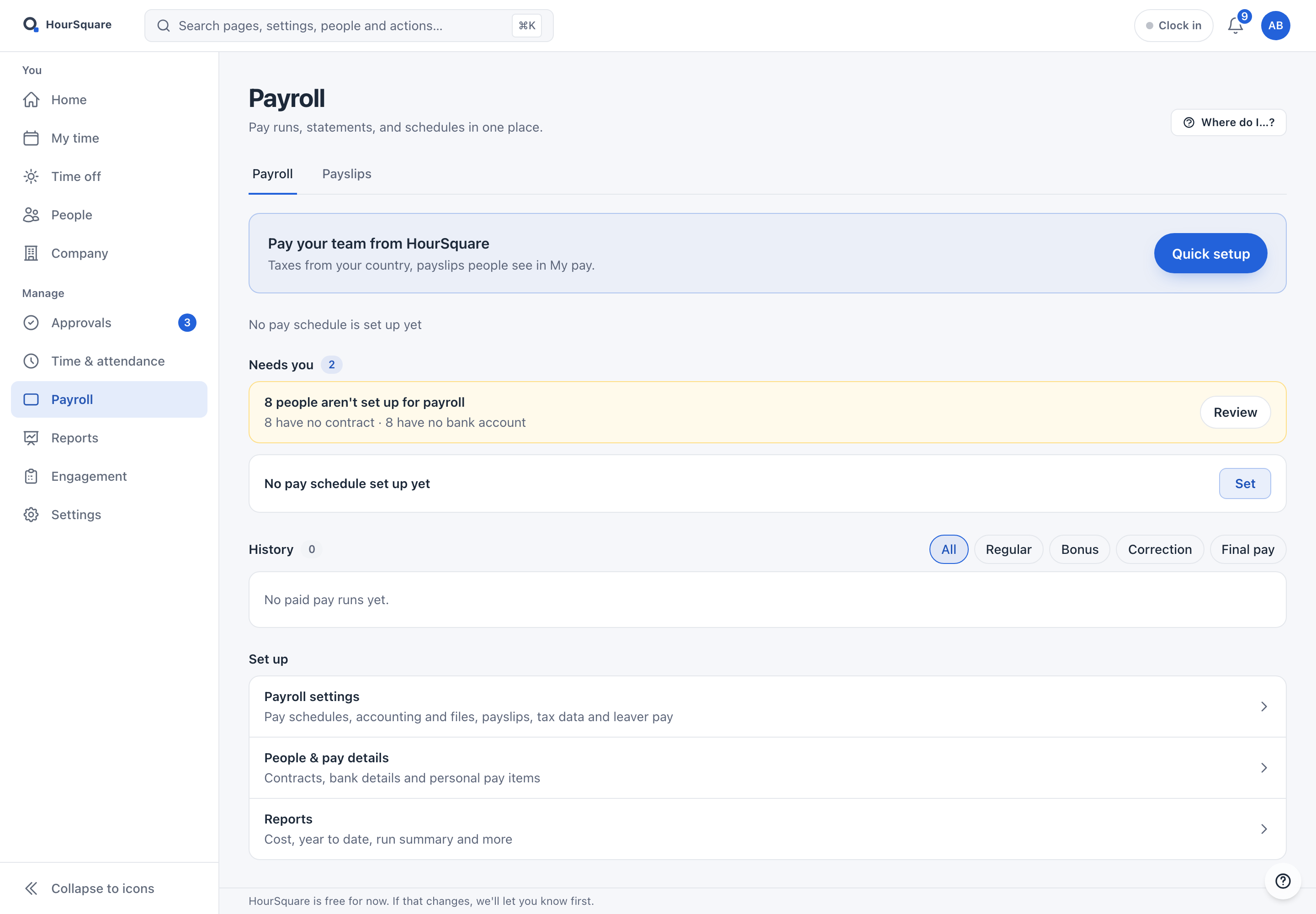
HourSquare Hub Payroll page in its starting state: a Quick setup prompt, no pay schedule, eight people not set up for payroll and an empty pay-run history.
Real Hub · desktopReal Hub · tabletReal Hub · phonePayroll in its setup starting state, before any pay schedule or run.

Payroll in its setup starting state, before any pay schedule or run.

What the screen shows
  • A Quick setup prompt and “No pay schedule set up yet”.
  • A needs-attention card: eight people not yet set up for payroll.
  • Payroll settings, People & pay details and Reports, with Payslips on a second tab.
Who sees it
Manage area, owner view. The screen notes that payslips are what people see in My pay.
Keep in mind
This is setup state, not a payroll run: no pay schedule, no paid runs and no payslips yet. Payroll depends on the country, so check that yours and the services you need are covered before you plan around it.
Payroll in more detail

7 of 8 · Reports

Reports, grouped by the question they answer.

The catalog starts from questions such as “Who was in, late or absent?” and “What do we owe?”, grouped under Time, Leave, People and Pay.
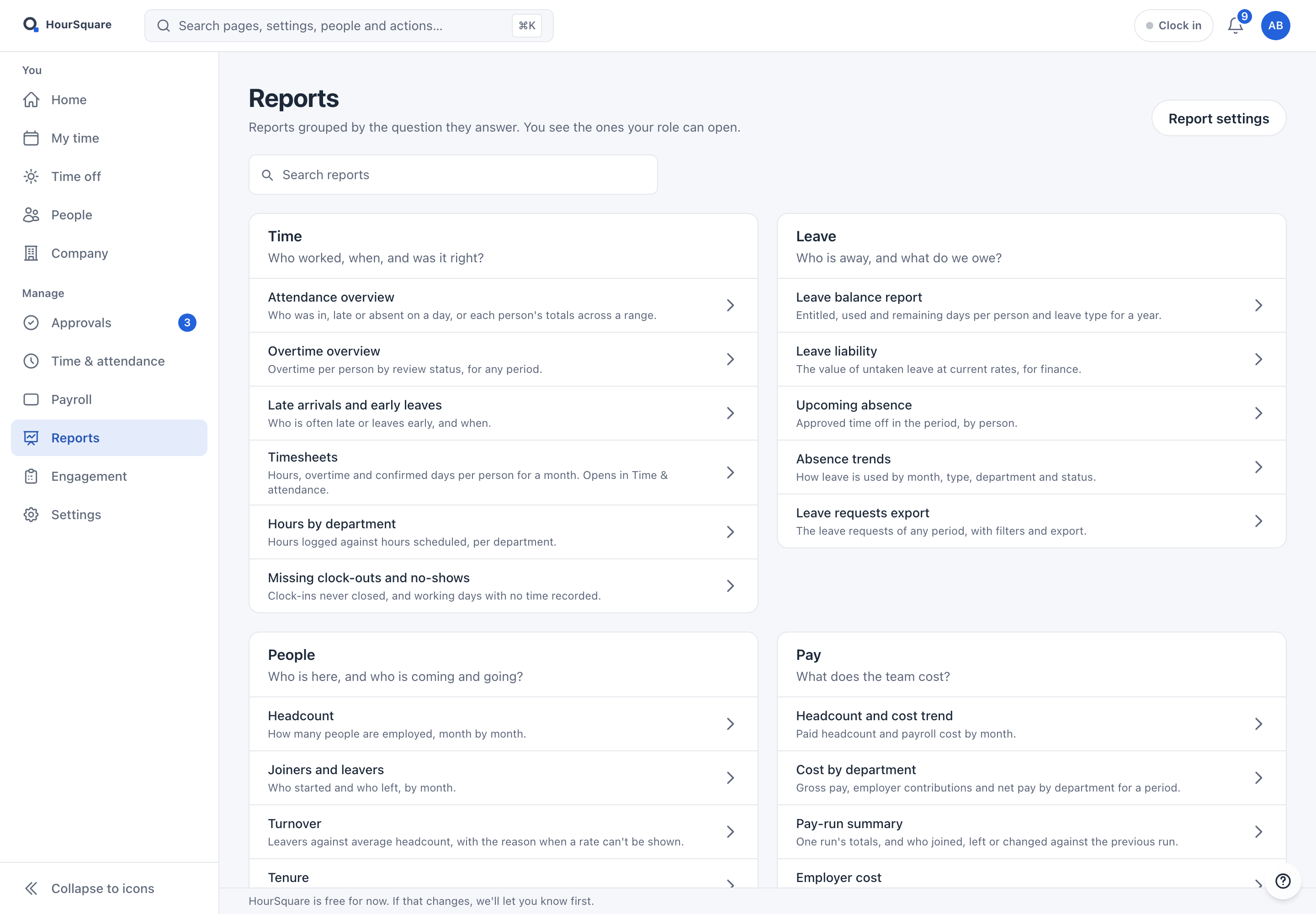
HourSquare Hub Reports catalog grouped into Time, Leave, People and Pay, each report with a one-line description of the question it answers.
Real Hub · desktopReal Hub · tabletReal Hub · phoneThe reports catalog, grouped by question.

The reports catalog, grouped by question.

What the screen shows
  • Search across reports, and a Report settings shortcut.
  • Each report has a one-line question it answers.
  • You see the reports your role can open.
Who sees it
Manage area. The page itself says you see the reports your role can open.
Keep in mind
The capture shows the catalog, not the content of any report. What a report contains depends on the data your company has recorded.

8 of 8 · On a phone

The same work, a smaller screen.

On a phone the Hub uses a layout made for small screens. This is an employee’s home, captured at a 390 px viewport.
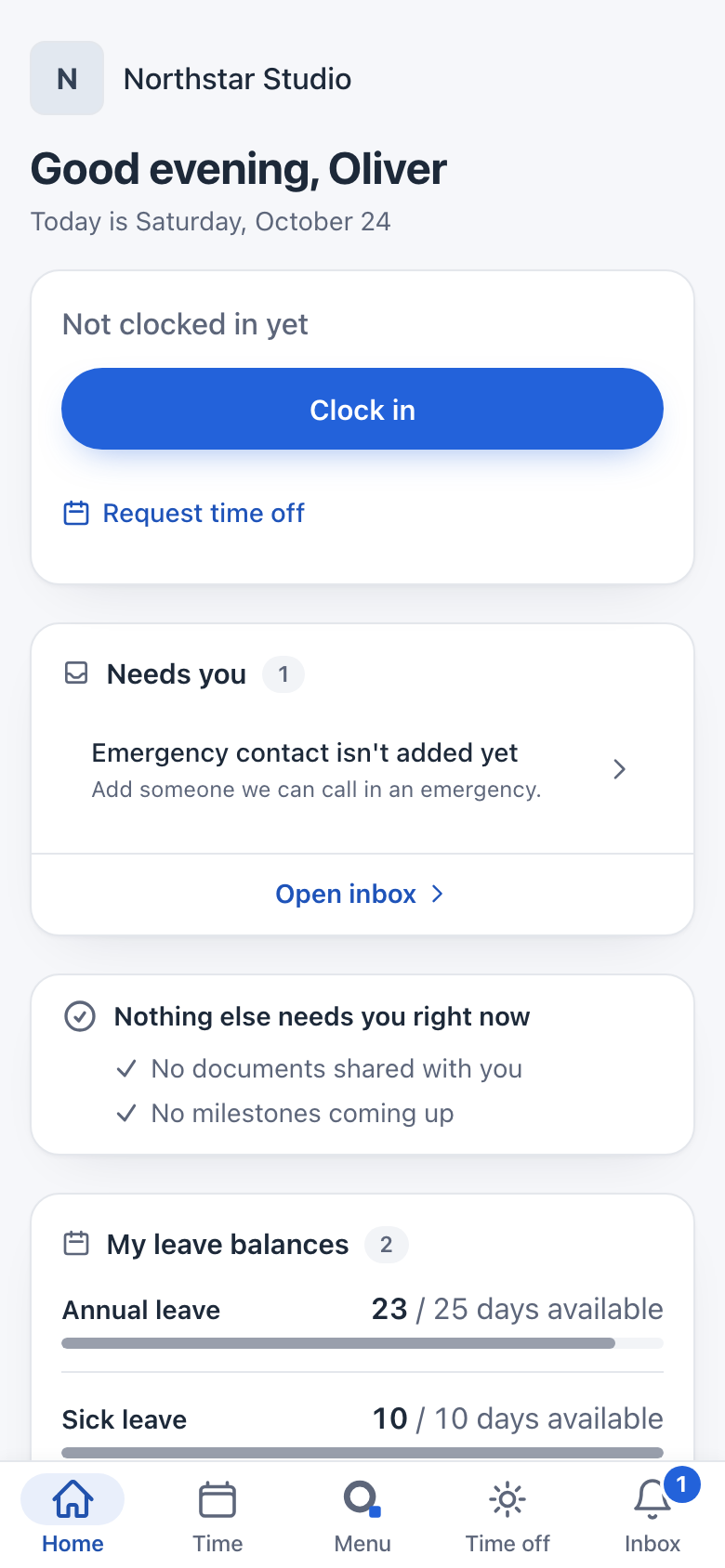
HourSquare Hub employee home on a phone-width screen for a fictional Northstar Studio employee.
Real Hub screenAn employee’s home at phone width.

An employee’s home at phone width.

What the screen shows
  • A real mobile layout, not a resized desktop screenshot.
  • Everyday tasks stay within reach.
  • Owner screens above have their own phone and tablet captures.
Who sees it
Employee view (a fictional employee, Oliver Grant).
Keep in mind
A reference capture at a narrow browser width, not an active employee account and not a physical-device test.

9 · Company setup

After you sign up, your company is created in three steps.

This happens in the Hub after sign-up, not on this website, and nothing on this page creates a company, turns on a module or sends an invitation. The choices are made by your company, and the three screens below are the real ones. You can leave and come back to them.

  1. Step 1 of 3 · Your company

    Company details

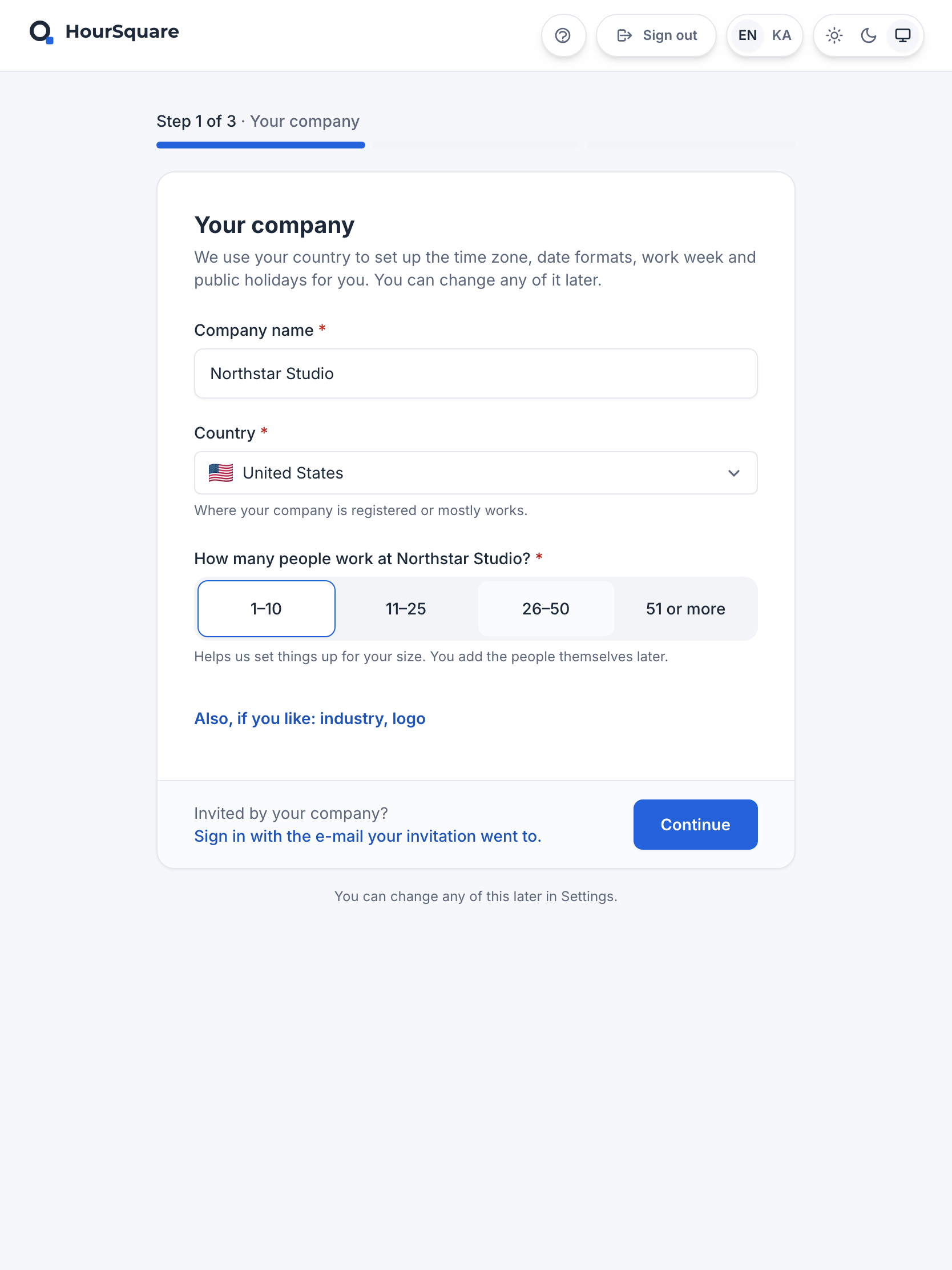
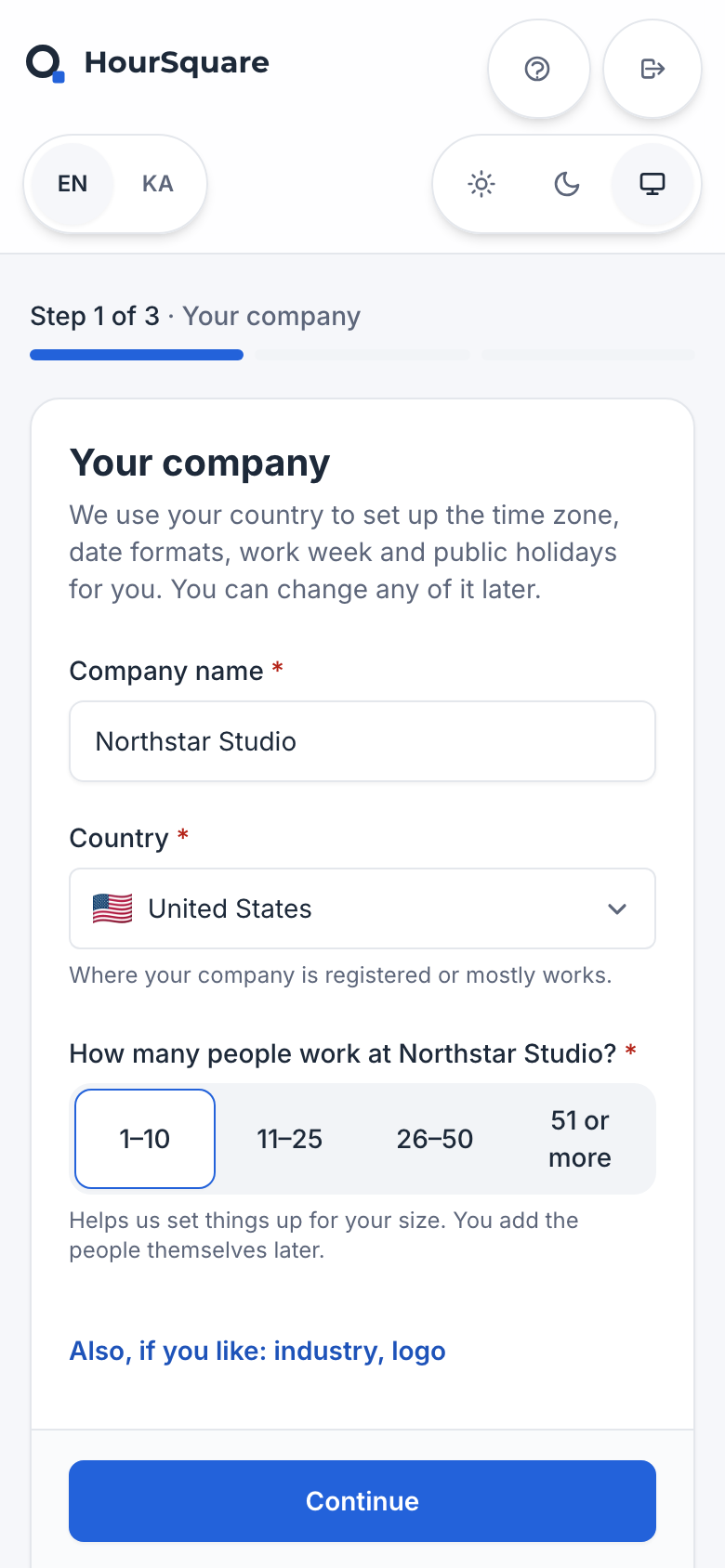
    Company name, country and a rough team size. The country is used to suggest your time zone, date formats, work week and public holidays.

    • Industry and logo are optional.
    • If your company already invited you, you sign in with the e-mail the invitation went to.
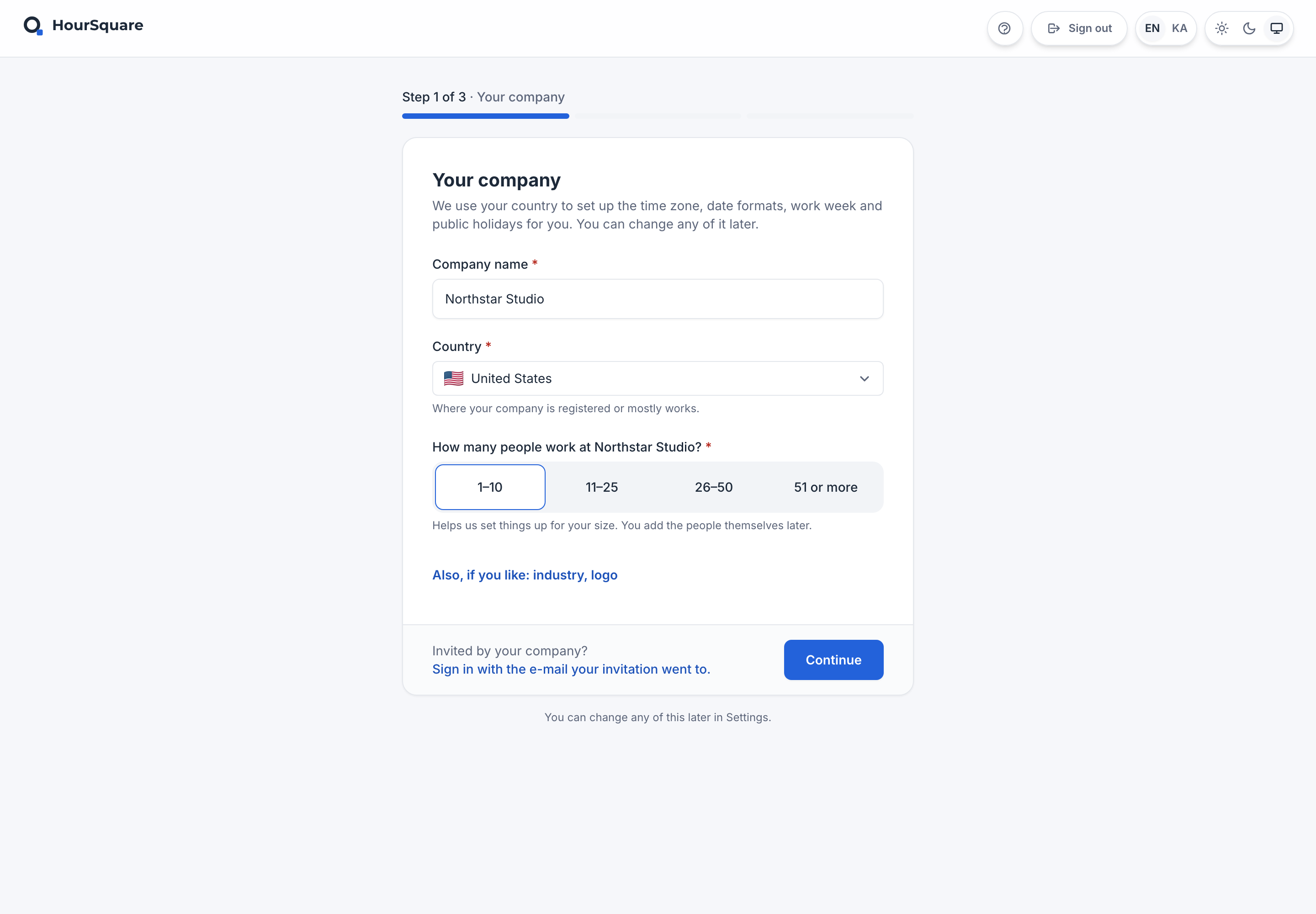
    HourSquare Hub company creation, step 1 of 3, Your company: company name, country and team-size choices.
    Real Hub screenStep 1 of 3 · Your company. Desktop capture.

    Step 1 of 3 · Your company. Desktop capture.

    HourSquare Hub company creation, step 1 of 3, Your company: company name, country and team-size choices.
    Real Hub screenStep 1 of 3 · Your company. Tablet capture.

    Step 1 of 3 · Your company. Tablet capture.

    HourSquare Hub company creation, step 1 of 3, Your company: company name, country and team-size choices.
    Real Hub screenStep 1 of 3 · Your company. Phone capture.

    Step 1 of 3 · Your company. Phone capture.

  2. Step 2 of 3 · How it works

    Country defaults and the data processing agreement

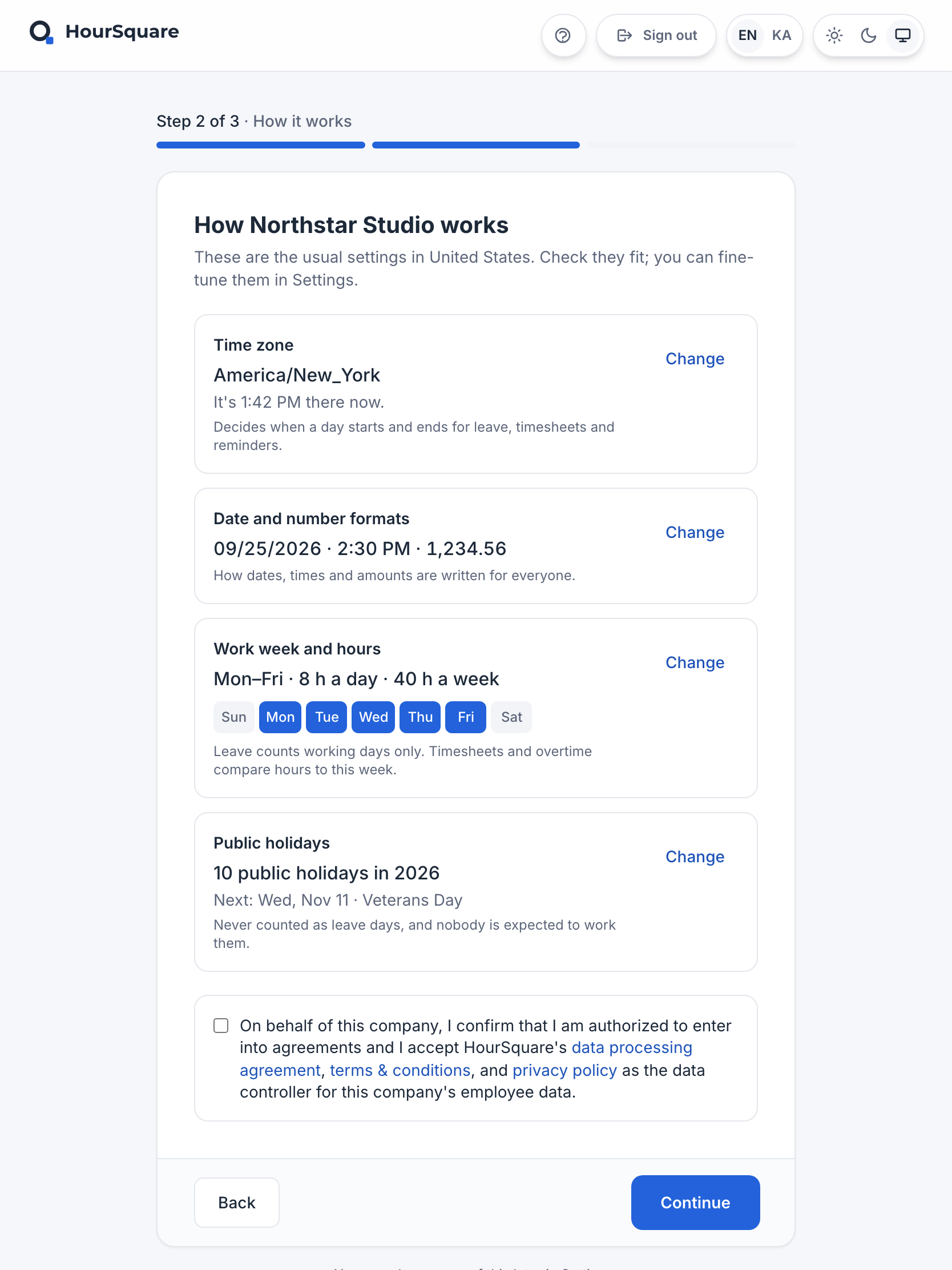
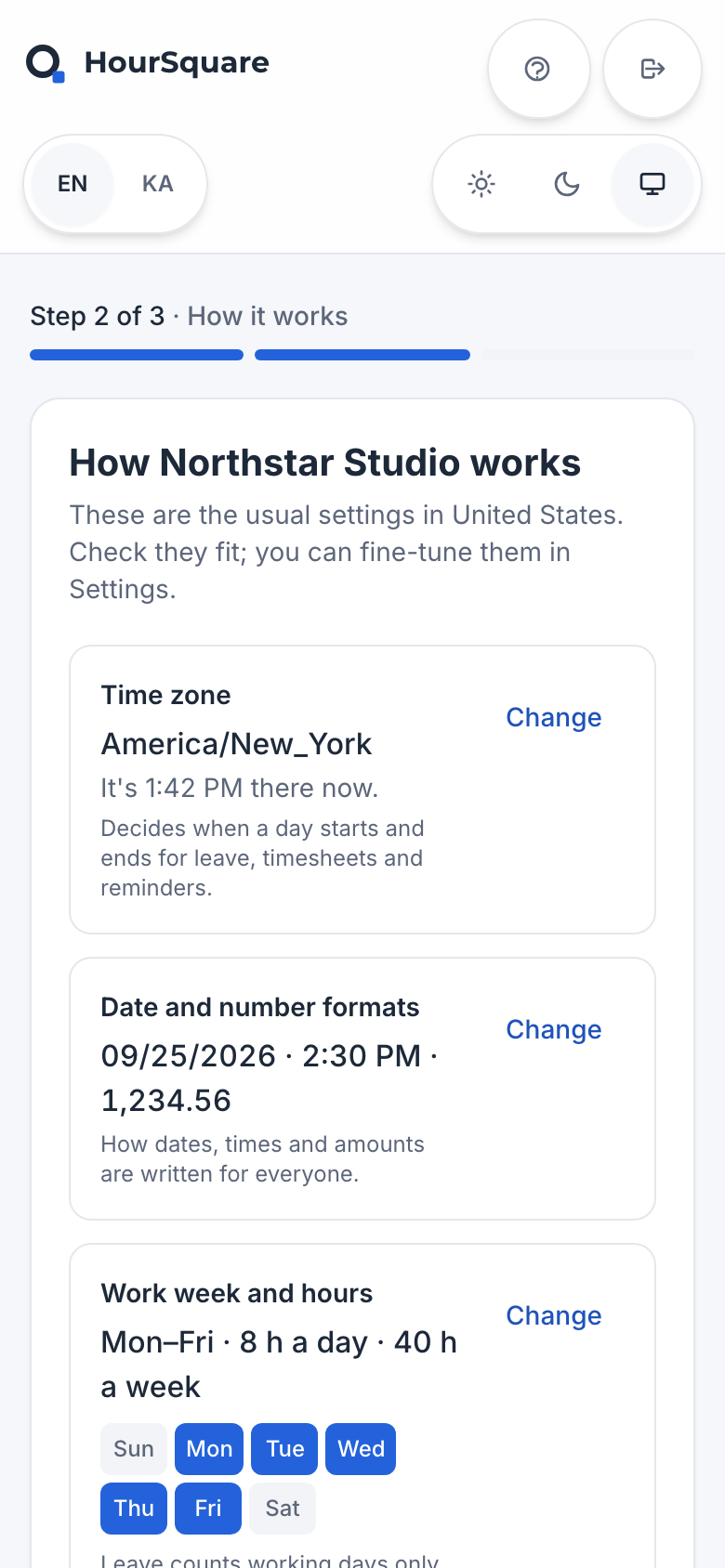
    The usual settings for your country are shown for you to check: time zone, date and number formats, work week and hours, and public holidays. Each has a Change button.

    • You confirm that you are authorised to accept the data processing agreement, terms and privacy policy on behalf of the company.
    • Nothing here is final: the screen says you can fine-tune settings later.
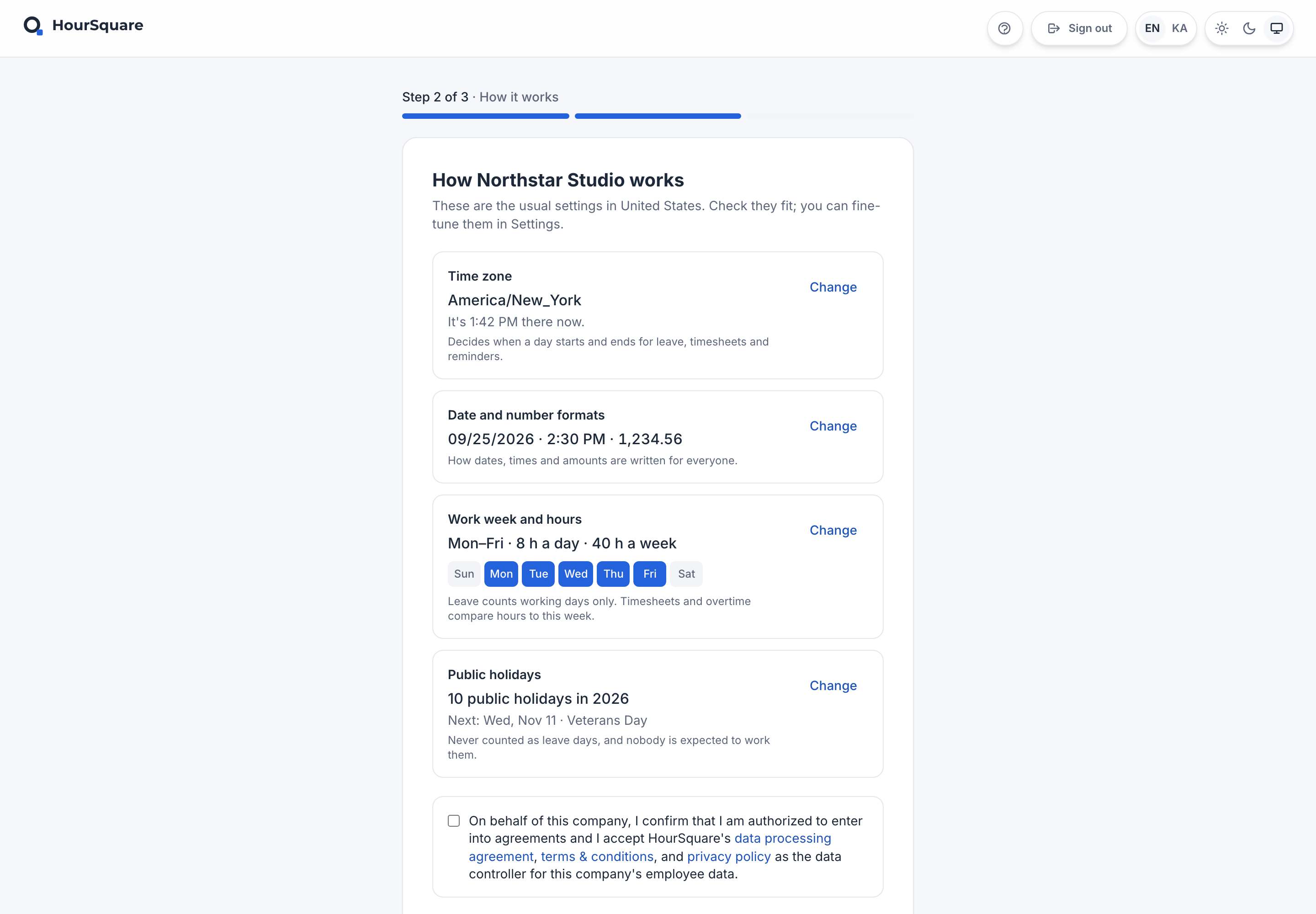
    HourSquare Hub company creation, step 2 of 3, How it works: time zone, date formats, work week and hours and public holidays with Change buttons, and a consent checkbox for the data processing agreement.
    Real Hub screenStep 2 of 3 · Country defaults and the agreement. Desktop capture.

    Step 2 of 3 · Country defaults and the agreement. Desktop capture.

    HourSquare Hub company creation, step 2 of 3, How it works: time zone, date formats, work week and hours and public holidays with Change buttons, and a consent checkbox for the data processing agreement.
    Real Hub screenStep 2 of 3 · Country defaults and the agreement. Tablet capture.

    Step 2 of 3 · Country defaults and the agreement. Tablet capture.

    HourSquare Hub company creation, step 2 of 3, How it works: time zone, date formats, work week and hours and public holidays with Change buttons, and a consent checkbox for the data processing agreement.
    Real Hub screenStep 2 of 3 · Country defaults and the agreement. Phone capture.

    Step 2 of 3 · Country defaults and the agreement. Phone capture.

  3. Step 3 of 3 · What your company needs

    Needs and starting modules

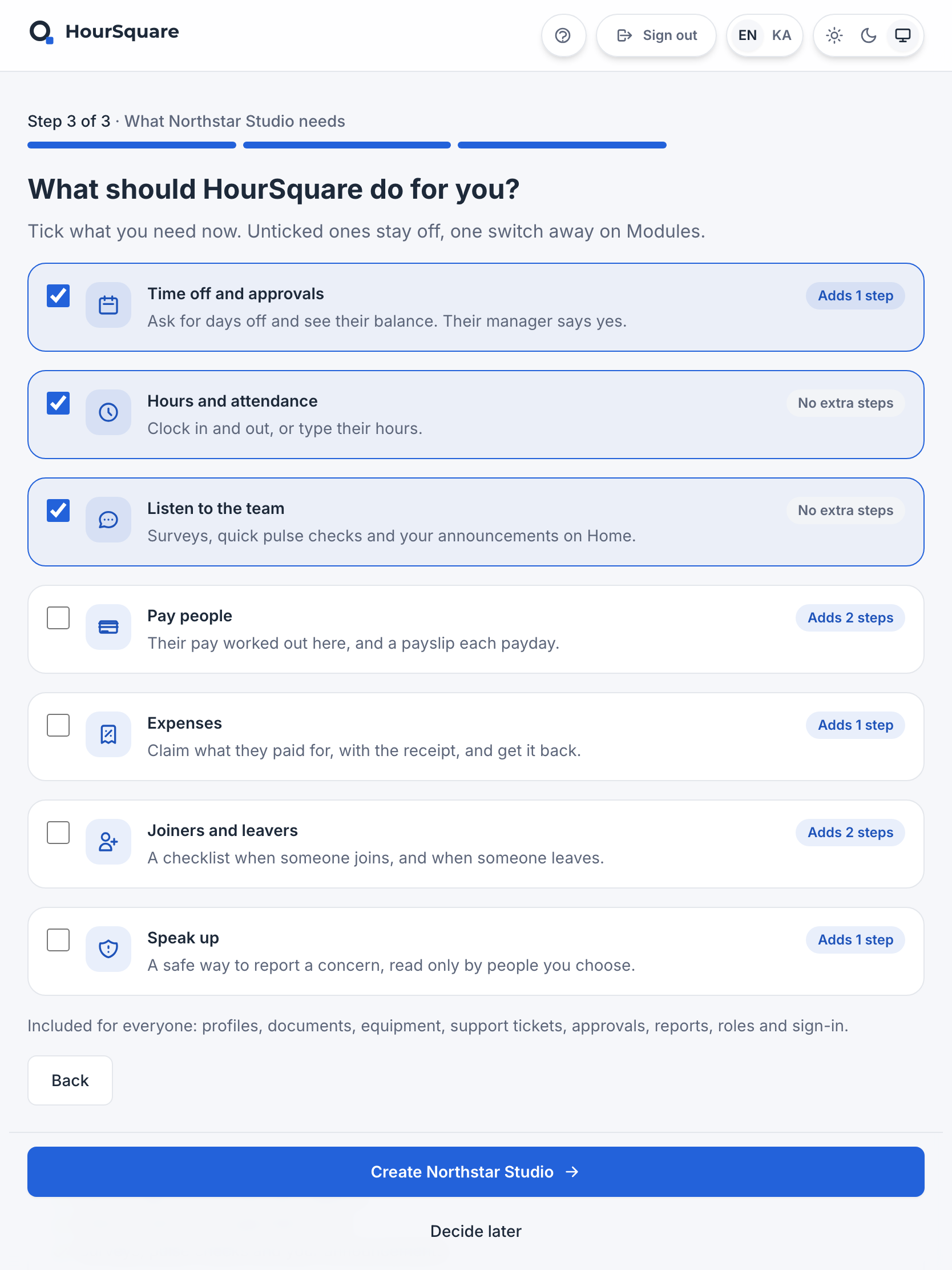
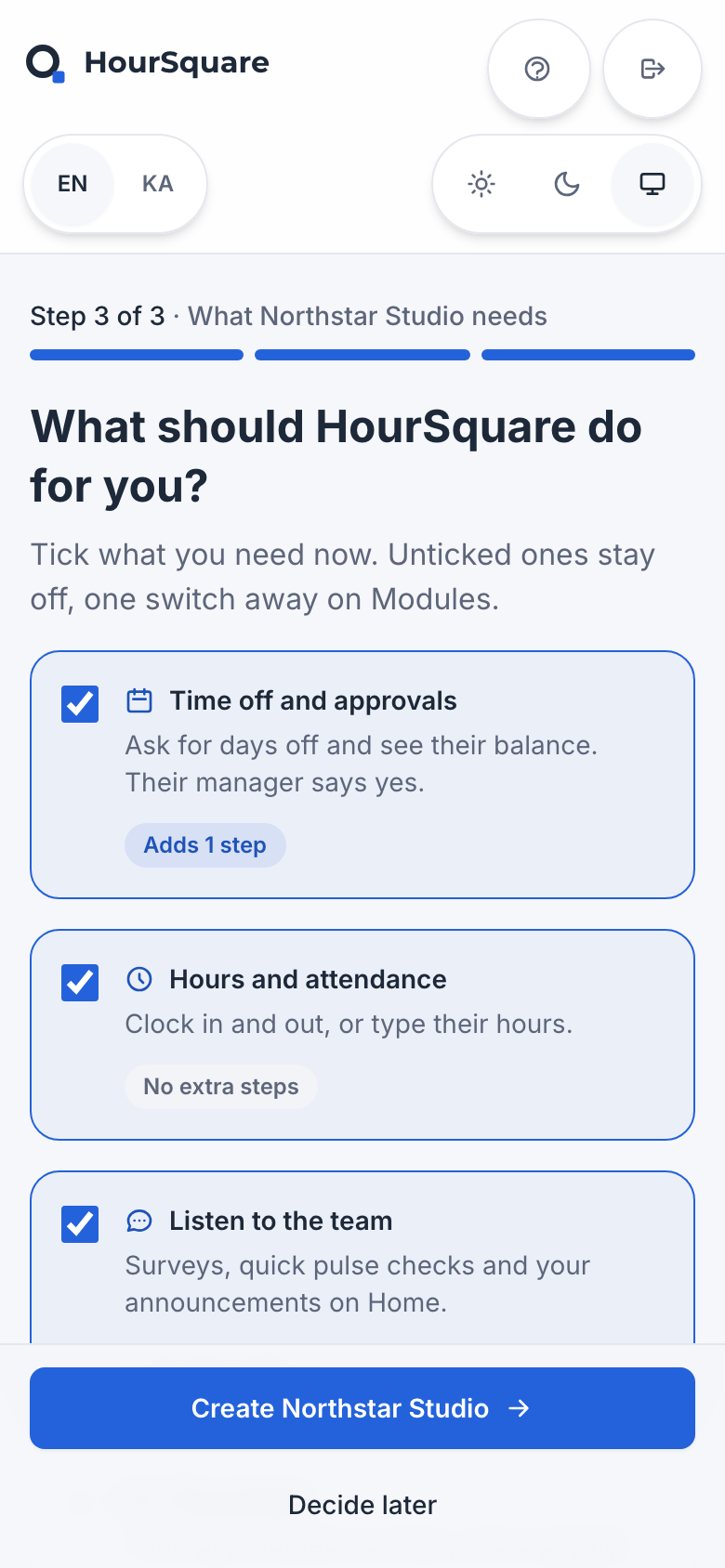
    Tick what you need now. The screen says unticked modules stay off, one switch away on Modules, and lists the extra setup steps each one adds.

    • Three modules are ticked in this capture; the choice is the company’s, not a recommendation from this website.
    • A “Decide later” button sits next to “Create” for companies that are not ready to choose.
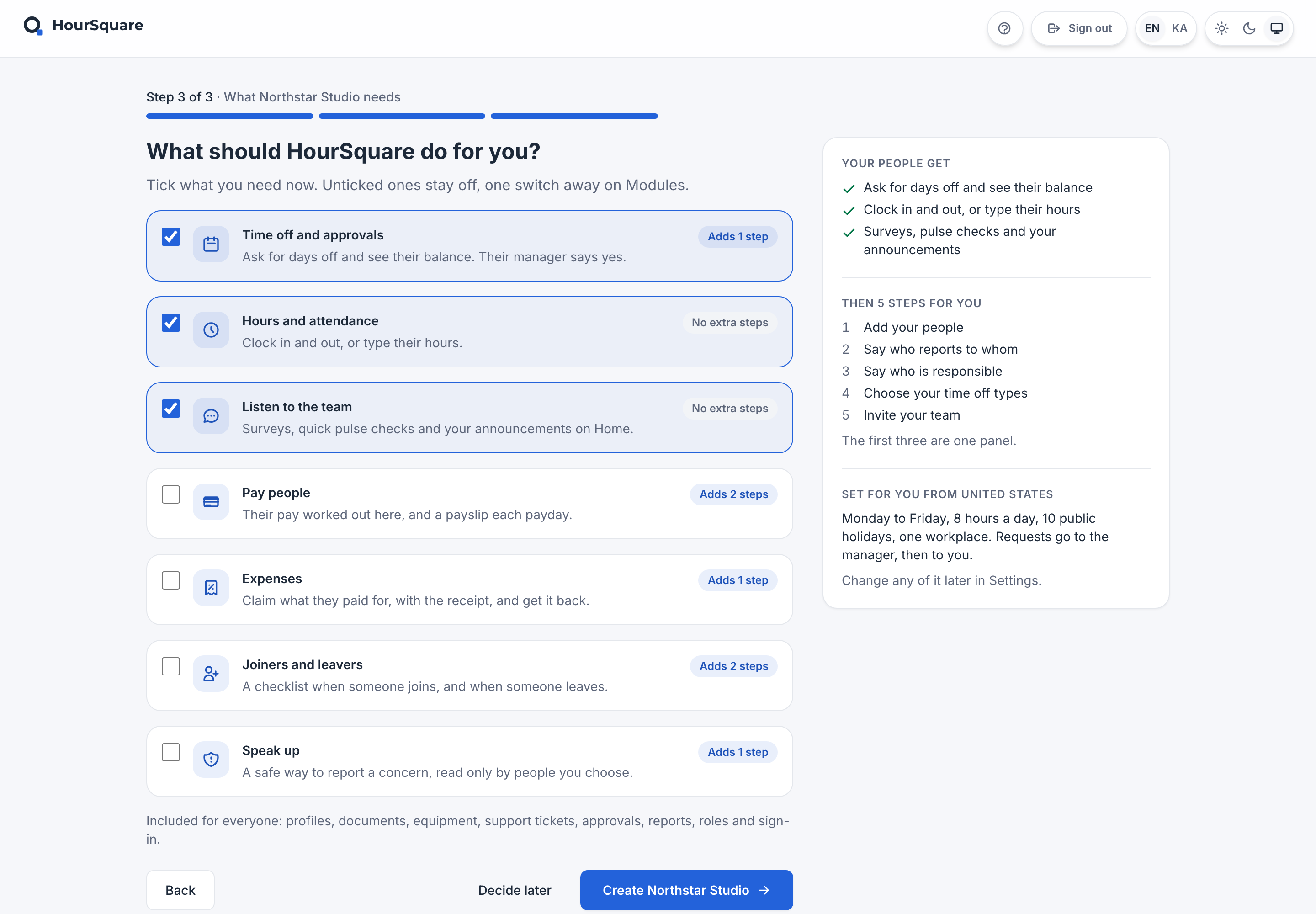
    HourSquare Hub company creation, step 3 of 3: a list of modules to tick (time off and approvals, hours and attendance, listen to the team, pay, expenses, joiners and leavers, speak up) with Back, Decide later and Create buttons.
    Real Hub screenStep 3 of 3 · Needs and starting modules. Desktop capture.

    Step 3 of 3 · Needs and starting modules. Desktop capture.

    HourSquare Hub company creation, step 3 of 3: a list of modules to tick (time off and approvals, hours and attendance, listen to the team, pay, expenses, joiners and leavers, speak up) with Back, Decide later and Create buttons.
    Real Hub screenStep 3 of 3 · Needs and starting modules. Tablet capture.

    Step 3 of 3 · Needs and starting modules. Tablet capture.

    HourSquare Hub company creation, step 3 of 3: a list of modules to tick (time off and approvals, hours and attendance, listen to the team, pay, expenses, joiners and leavers, speak up) with Back, Decide later and Create buttons.
    Real Hub screenStep 3 of 3 · Needs and starting modules. Phone capture.

    Step 3 of 3 · Needs and starting modules. Phone capture.

A separate surface, later

The Settings → Modules setup checklist

Once the company exists, Settings → Modules shows a setup checklist for adding people, setting approvals, choosing time-off types and deciding how hours are recorded. It is a different screen from the three steps above: the place you return to as you set up each module you chose.

Keep in mind: “4 of 6 done” belongs to the fictional Northstar Studio, not to a typical company.
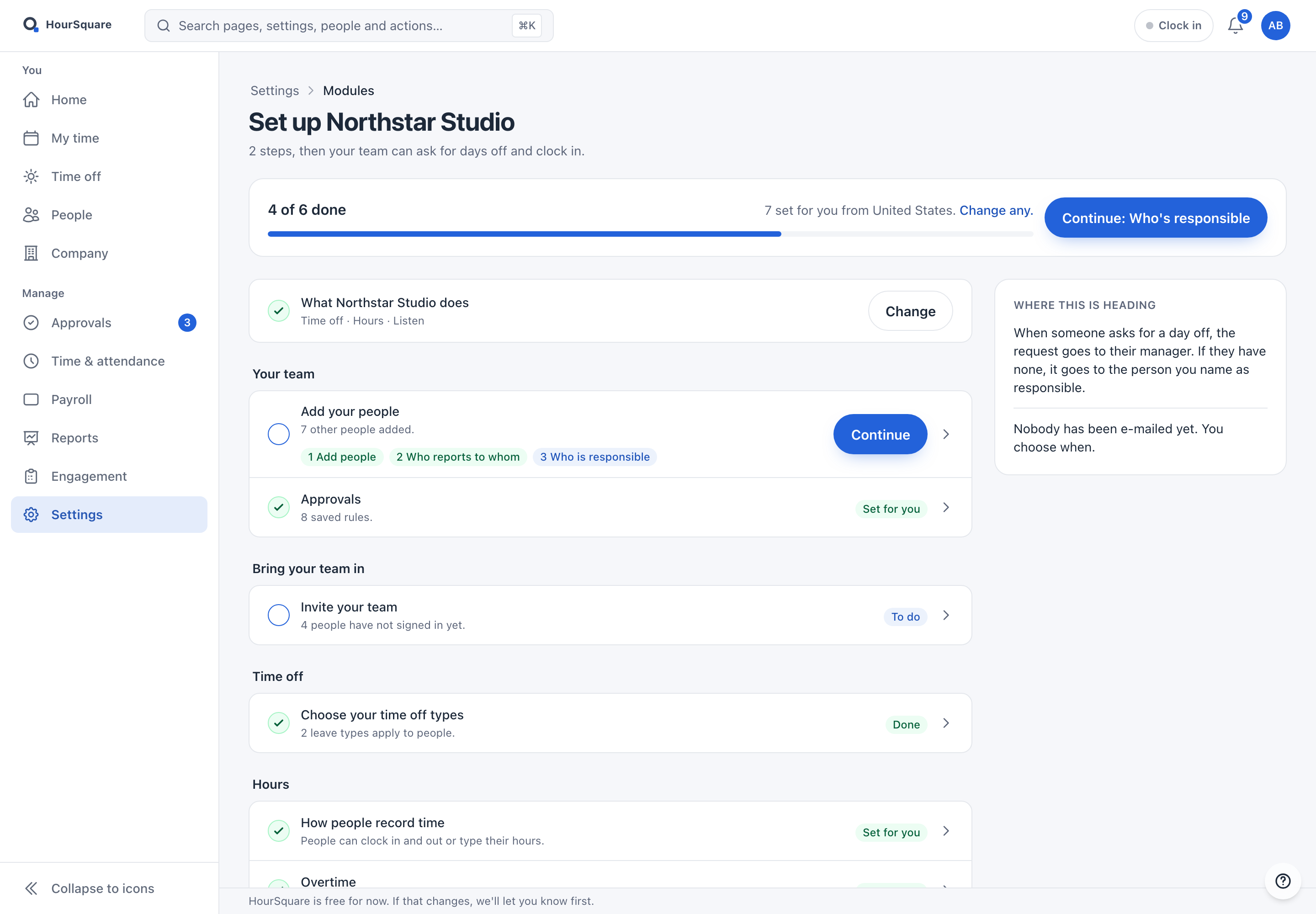
HourSquare Hub Settings, Modules: a setup checklist titled Set up Northstar Studio, showing 4 of 6 done, with groups for your team, bringing your team in, time off and hours.
Real Hub · desktopReal Hub · tabletReal Hub · phoneThe Modules setup checklist, a later screen than company creation.

The Modules setup checklist, a later screen than company creation.

Seen enough?

Look at the offer, then start when you are ready.

Sign up yourself, no demo needed. Free forever for teams of up to 10 people, and free for now for larger teams.

Free forever up to 10 people · GDPR-native · EU-hosted

Preparing first? Read Moving to HourSquare or the practical guides.

HOURSQUARE · EST 2026 HR you run yourself.